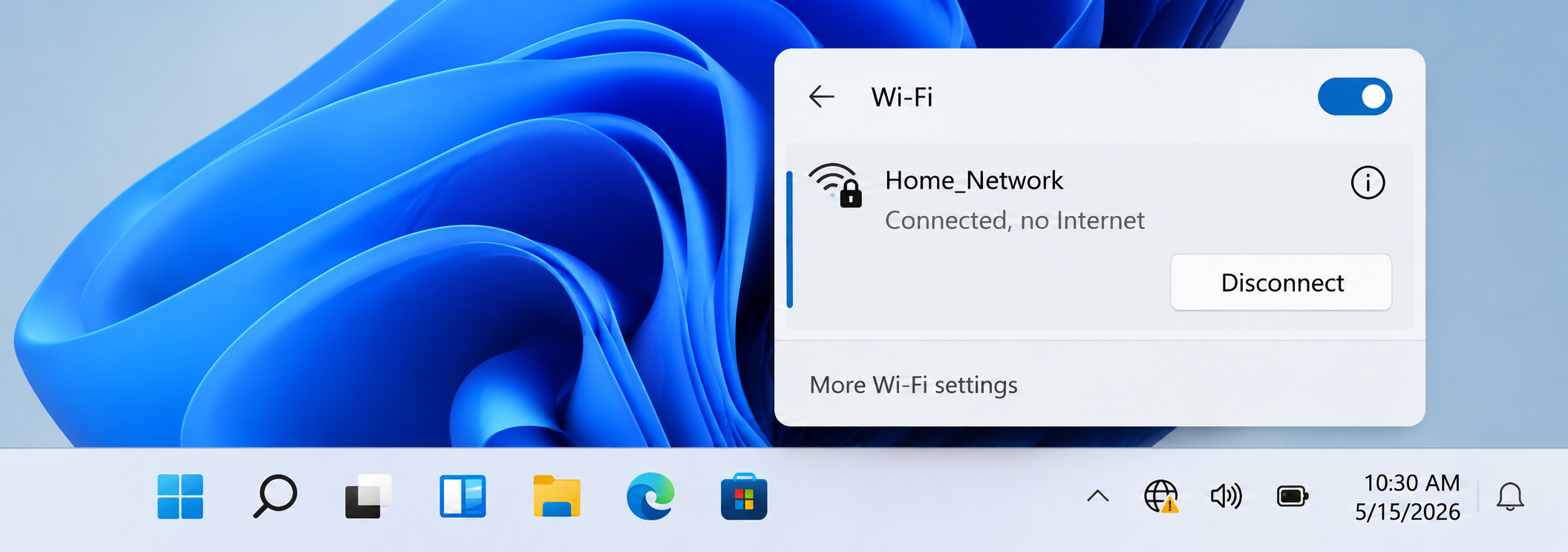
Connected, No Internet
What you see
WiFi icon is connected but browser pages do not load.
What it may mean
The device may be connected to the router, but internet access may not be reaching the router.
A simple educational guide explaining Wi-Fi icons, router lights, “connected, no internet” messages, network names, password prompts, weak signal, and adapter status.
Real-style network view
These cards explain common WiFi signs in a simple way, using the kind of messages and icons users normally see.
What you see
WiFi icon is connected but browser pages do not load.
What it may mean
The device may be connected to the router, but internet access may not be reaching the router.
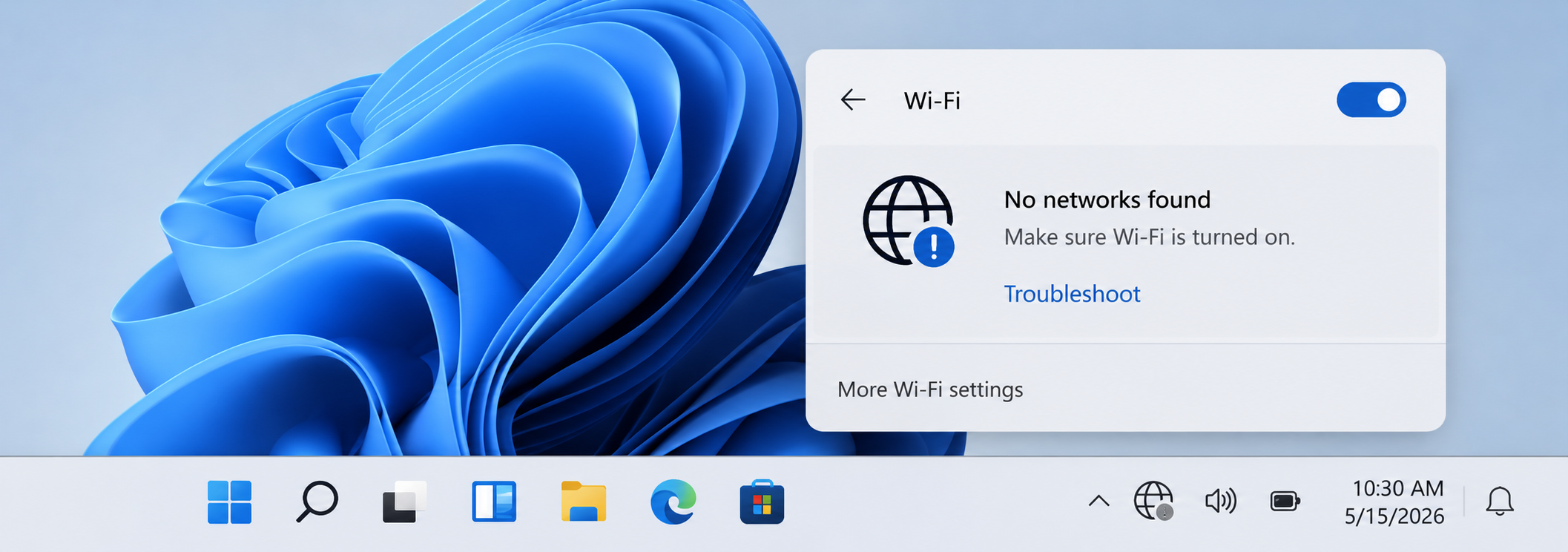
What you see
Win does not show nearby WiFi names.
What it may mean
WiFi may be turned off, airplane mode may be enabled, or the wireless adapter may not be active.
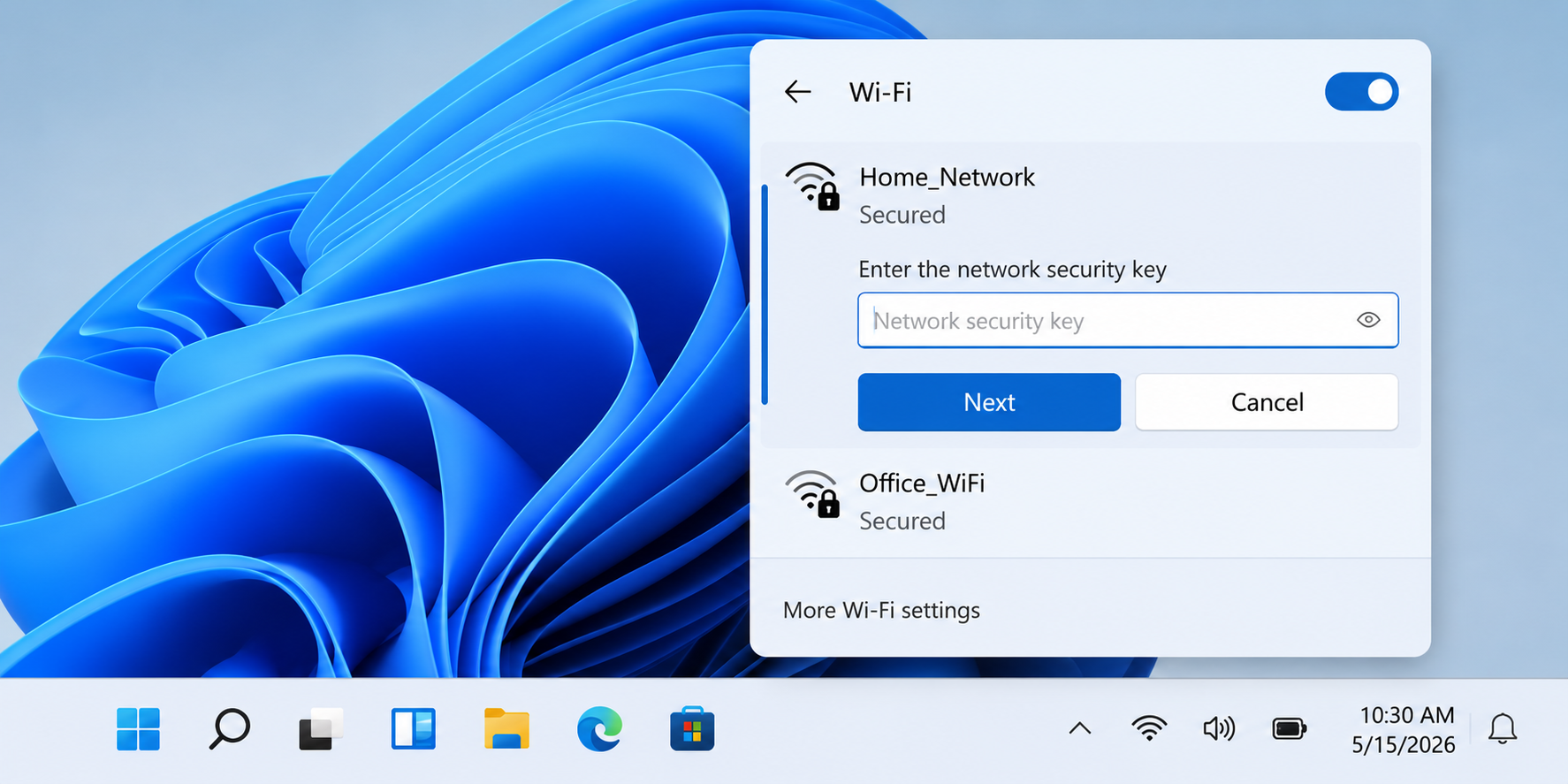
What you see
Win asks for a network security key.
What it may mean
The saved WiFi password may be missing, changed, or removed after settings were updated.
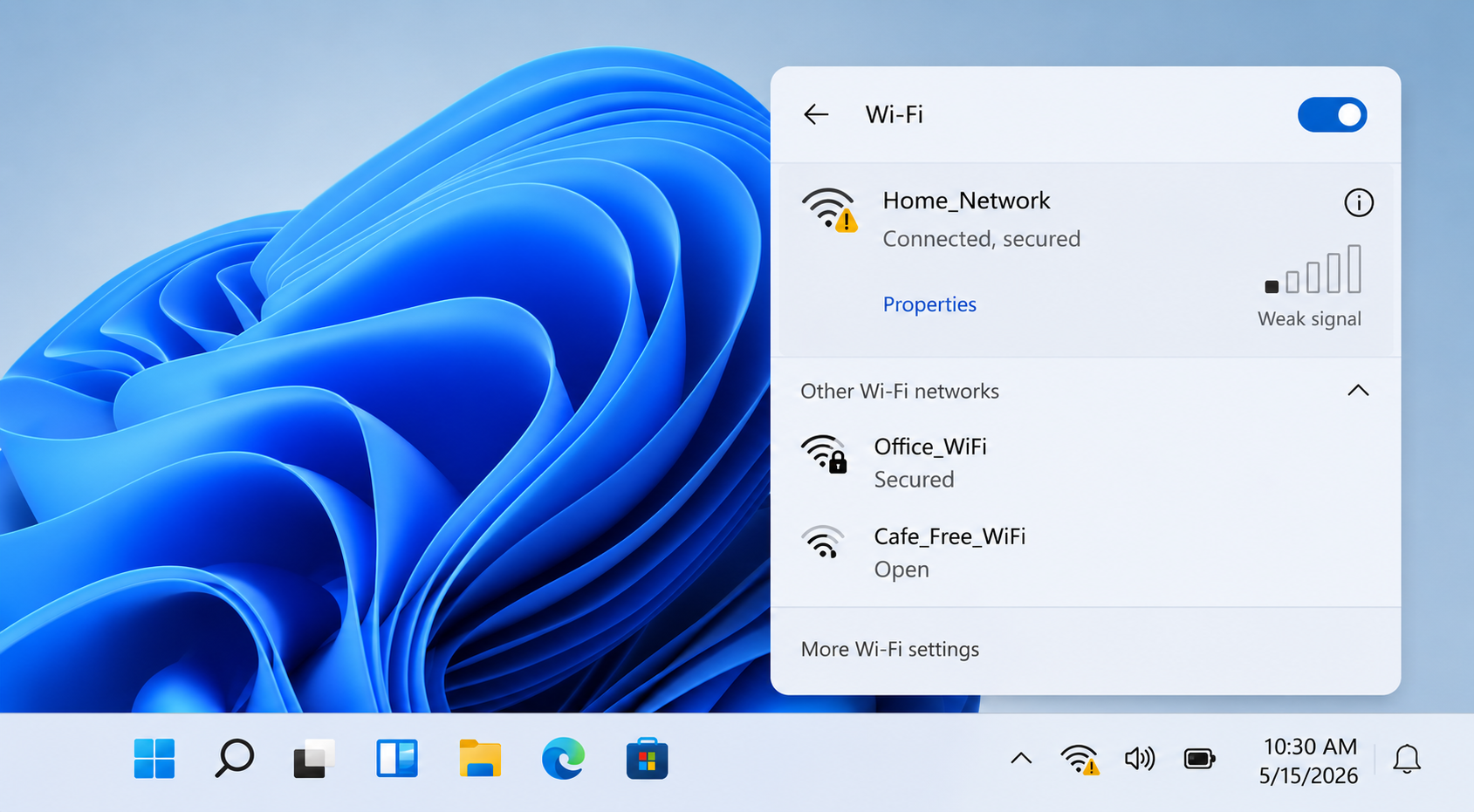
What you see
WiFi bars are low or connection keeps dropping.
What it may mean
The device may be too far from the router or blocked by walls, distance, or interference.
This page explains common Wi-Fi and router concepts in a learning format. Exact labels, router lights, adapter names, and network settings may differ by manufacturer, operating system, and device model.
These steps explain where WiFi information usually appears and what each screen area represents.
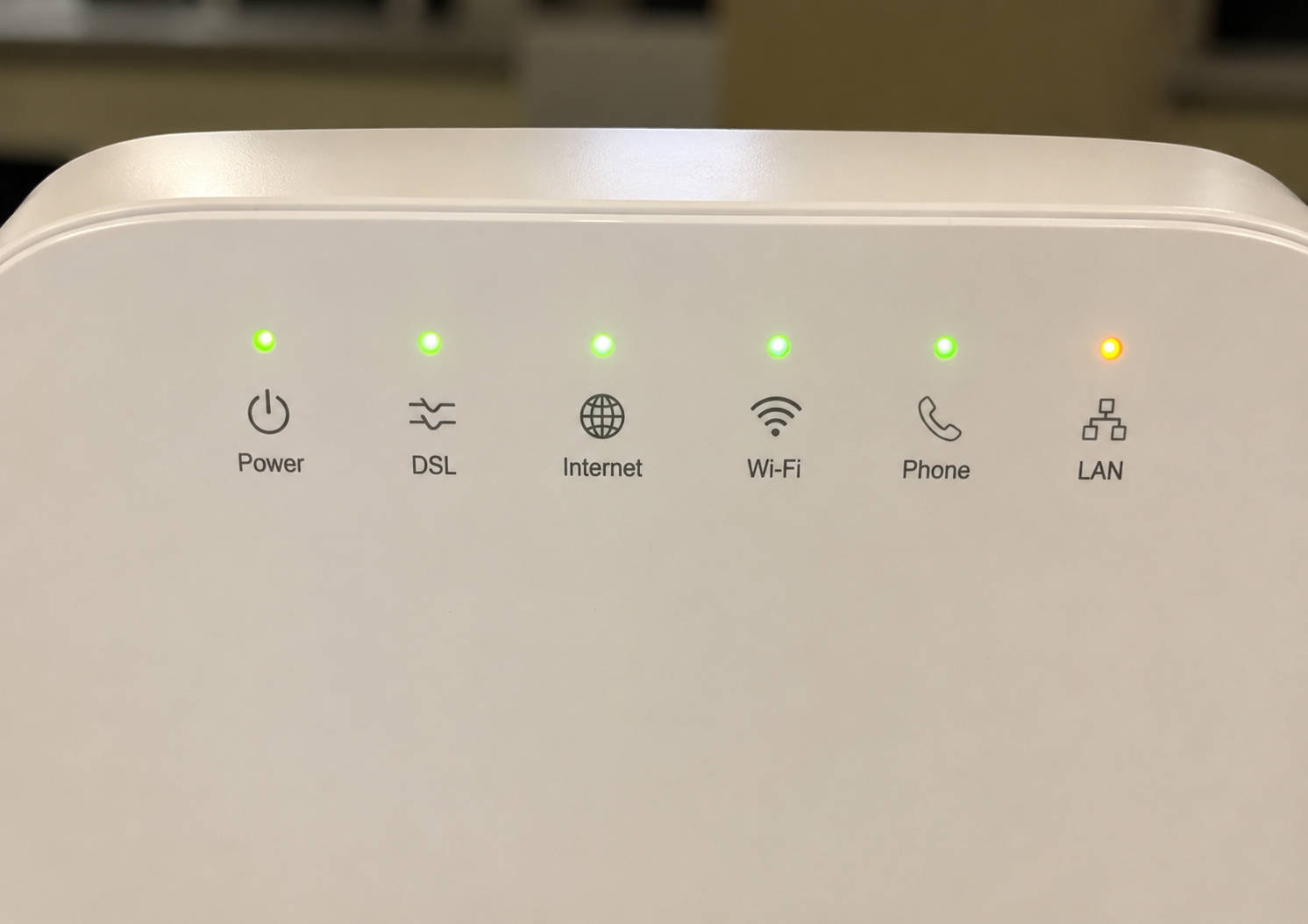
Router lights usually show power, internet, WiFi, and connection activity. If the internet light is off or blinking differently, the router may not have active internet access.
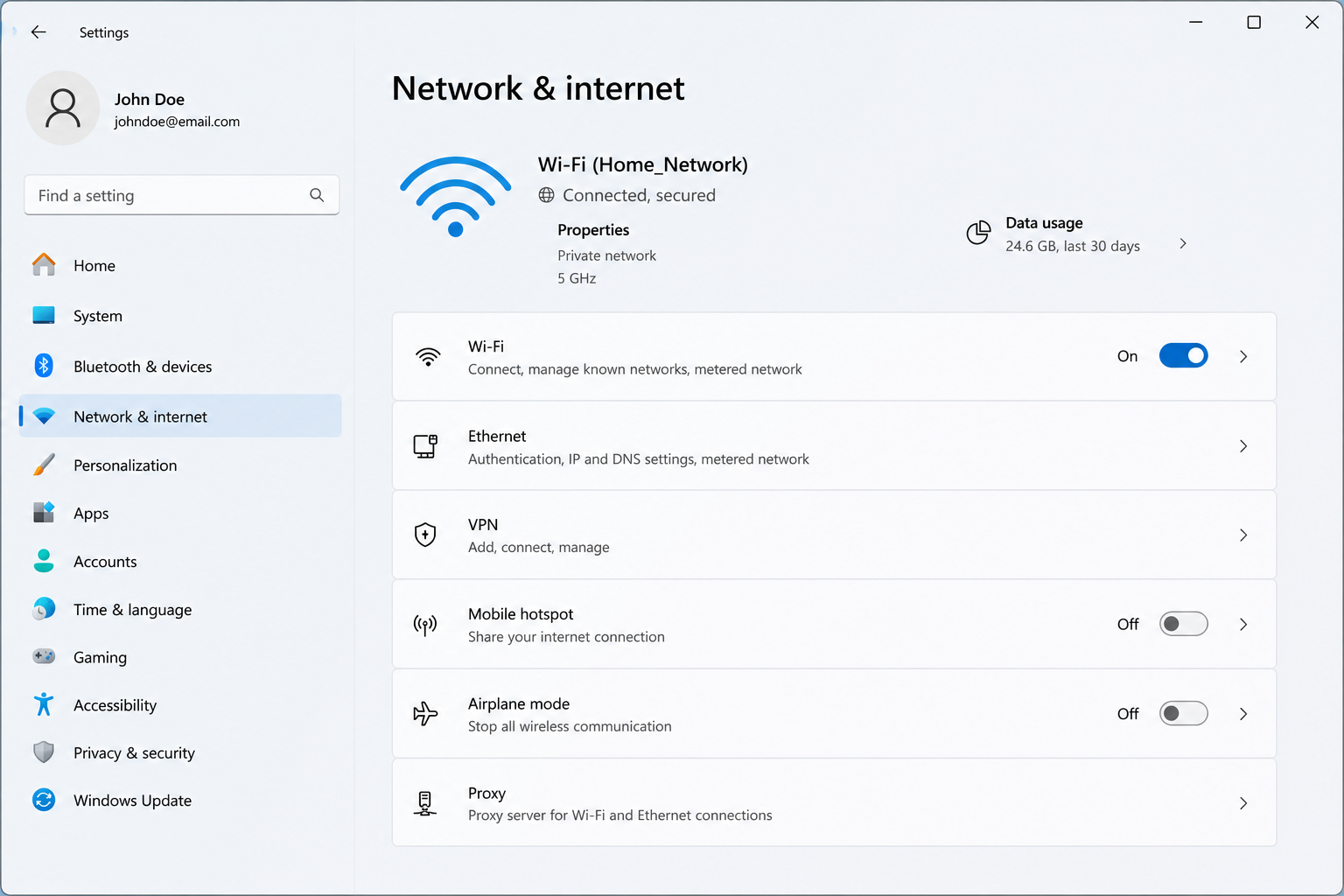
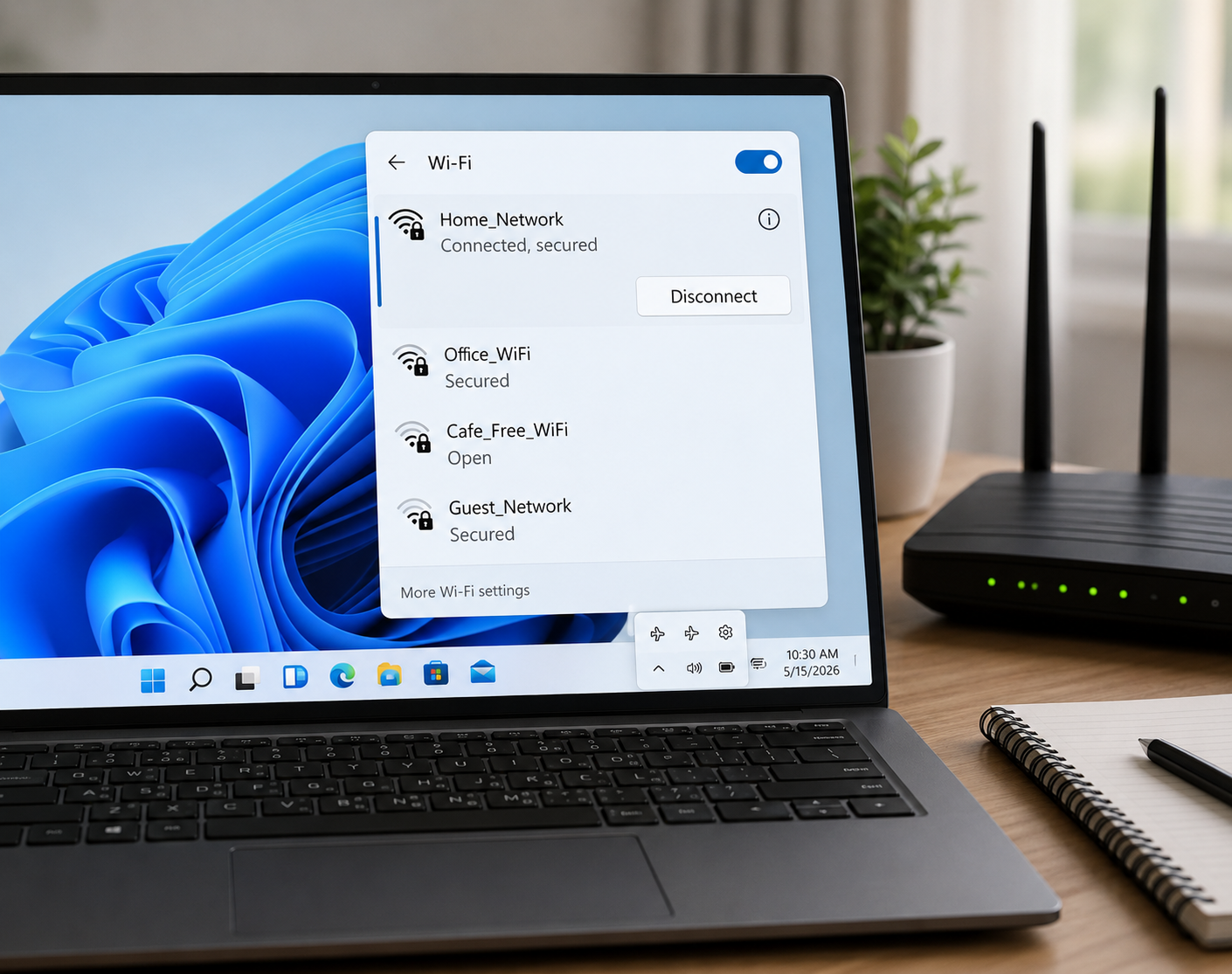
Win network settings show whether WiFi is enabled, which network is connected, and whether the device reports internet access.
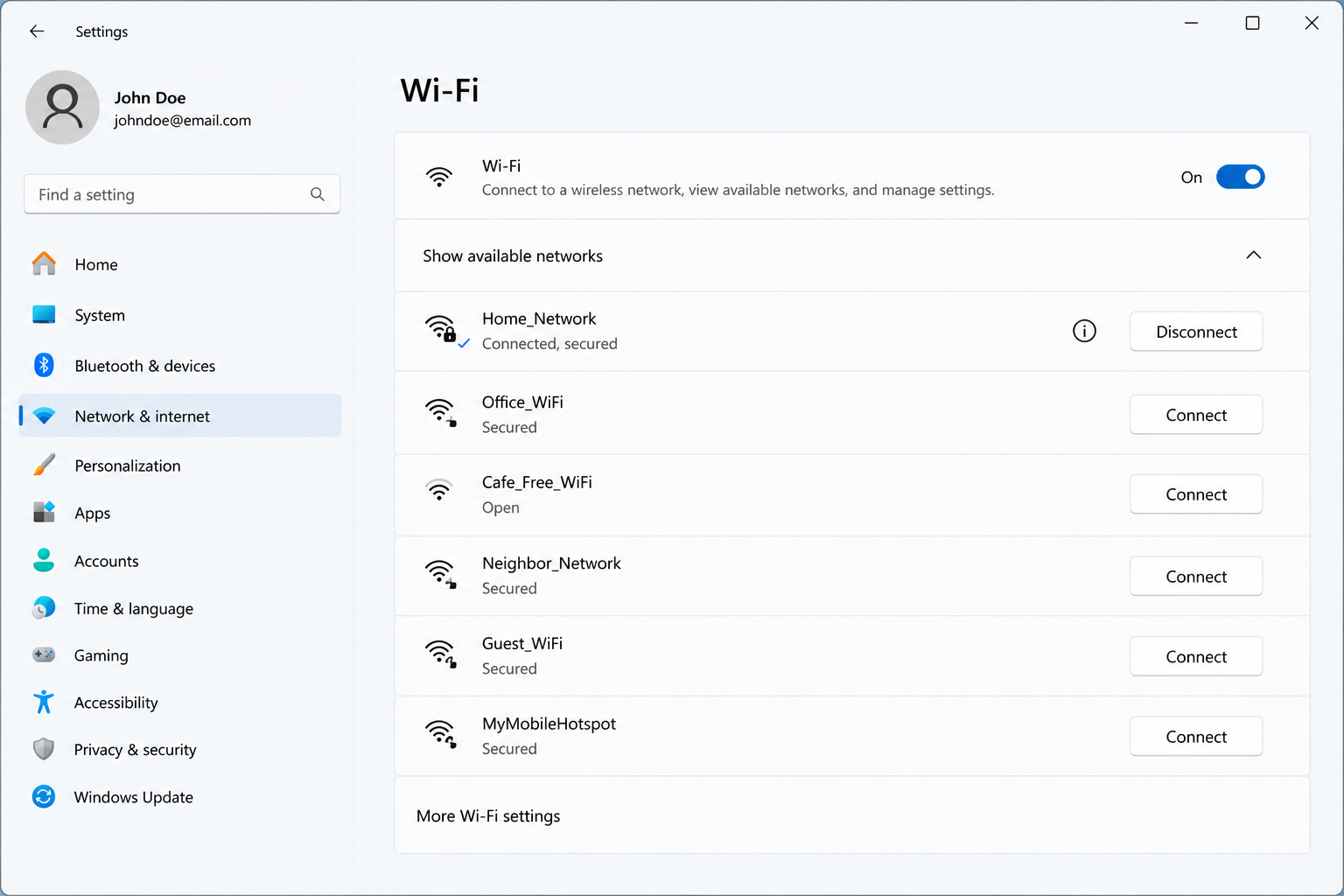
The WiFi network list helps users check whether nearby networks are visible and whether the correct network name appears.
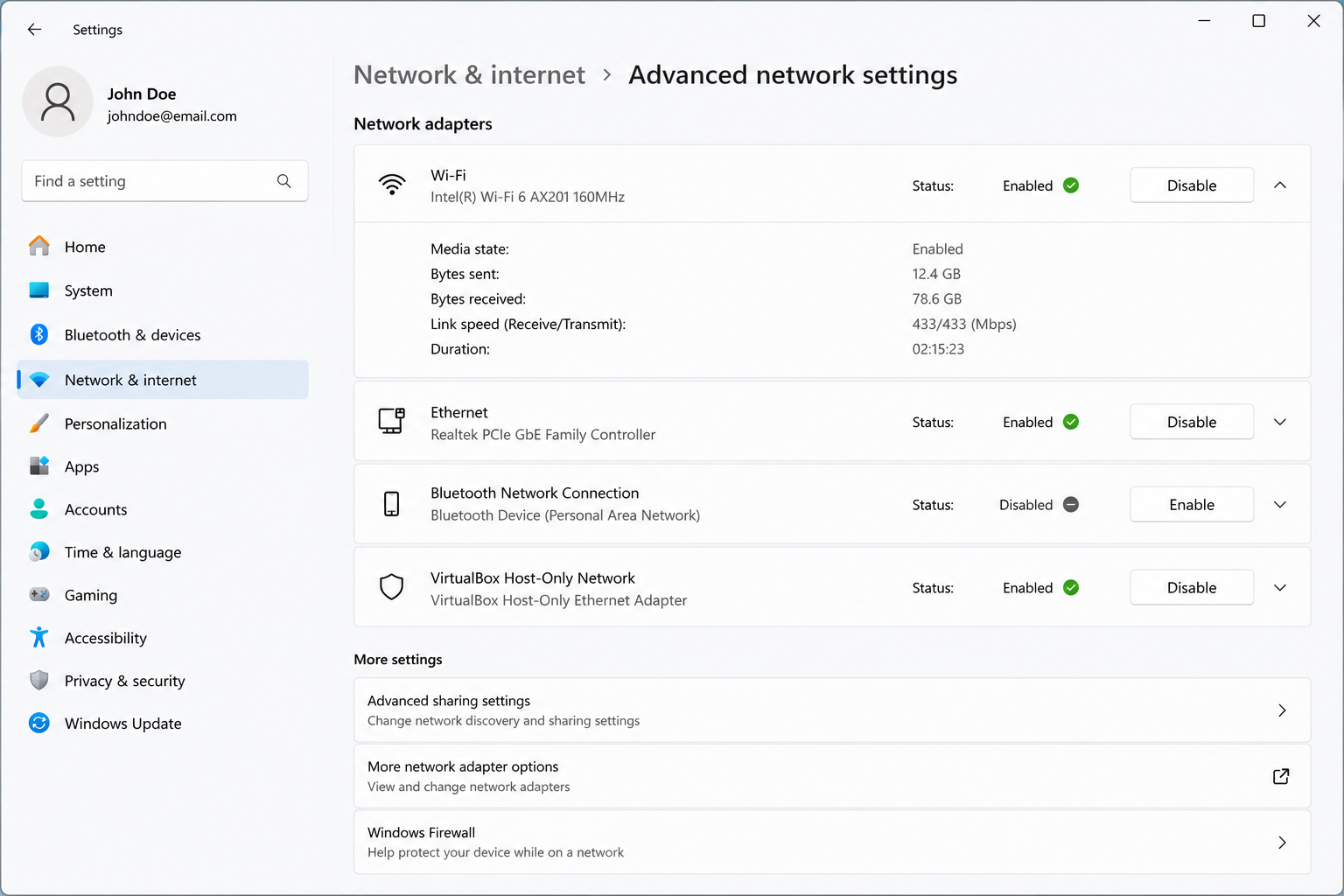
The adapter area shows whether the wireless device is enabled, disabled, missing, or not responding as expected.
Wi-Fi usually means the wireless connection between a device and a router. Internet access depends on whether the router or modem is connected to the internet provider. This is why a device can show “connected” but still display “no internet.”
Router lights normally show power, internet/WAN status, Wi-Fi broadcast, Ethernet activity, and device communication. The exact meaning of each light depends on the router model, so official router documentation should be checked for product-specific details.
Signal strength can change because of distance, walls, floors, router placement, interference, and the number of connected devices. A device close to the router may behave differently from one in another room.
Network names are commonly called SSIDs. The SSID is the Wi-Fi name shown in the network list. Passwords, encryption type, saved network settings, and adapter status can affect whether a device connects successfully.
A wireless adapter is the hardware inside the computer that connects to Wi-Fi. If the adapter is disabled, missing, or not responding, nearby networks may not appear even when the router is working.
Router internet light, modem, ISP status, network settings
WiFi toggle, airplane mode, adapter status, router broadcast
Correct network name, updated password, saved network settings
Signal strength, distance, router placement, device load
Number of devices, router location, background downloads, signal quality
These terms commonly appear inside Windows network settings, router apps, Wi-Fi lists, and internet connection messages.
The wireless connection between a device and a router.
The online connection provided through a modem, router, or internet provider.
The Wi-Fi network name shown in the available networks list.
The device that shares local network and internet access with connected devices.
The device that connects the home network to the internet provider.
A Wi-Fi band that often reaches farther but may be slower or more crowded.
A Wi-Fi band that may be faster at shorter range but can weaken through walls.
The computer hardware that allows Wi-Fi or Ethernet connection.
Simple answers about common WiFi signs, router behavior, and network concepts.
It usually means the device is connected to the router, but the router may not currently have active internet access.
The router may not be broadcasting, WiFi may be turned off, or the wireless adapter may not be active.
Slow speed can relate to distance, weak signal, too many connected devices, background downloads, or router placement.
A warning icon usually indicates limited or no internet access even though a network connection exists.
Yes. This page explains common WiFi screens and concepts for educational reading.
Read more educational guides about printer learning, email basics, PC performance, and Win update concepts.