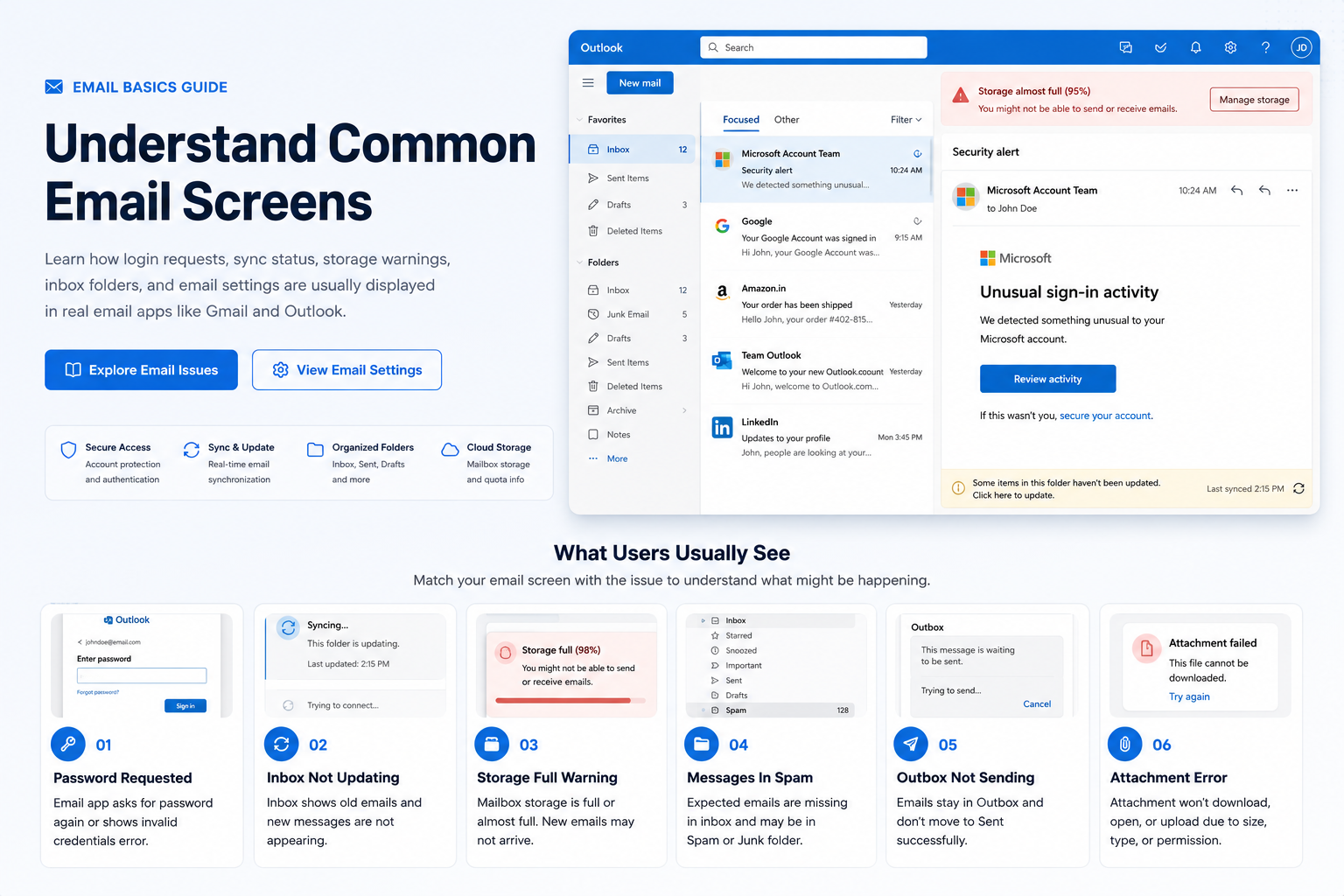
Password Requested
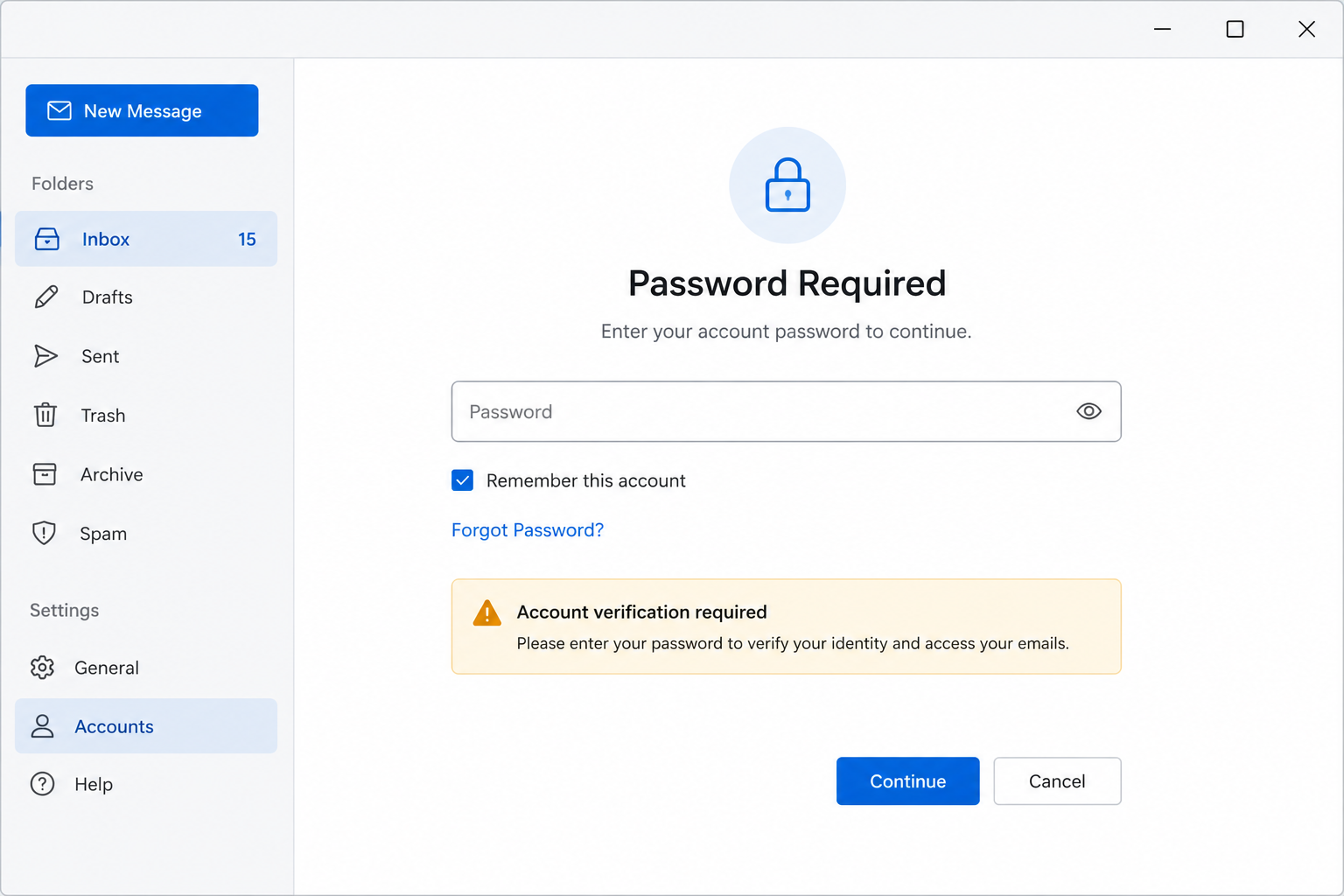
What you see
Email app asks to enter the password again.
What it may mean
The account may need authentication, updated password, or security verification.
Where to check
Password, 2-step verification, account security
A simple educational guide explaining password prompts, email sync status, inbox folders, outbox messages, mailbox storage warnings, attachments, and common email settings.
These cards explain common email screens in a simple way so readers can understand what they are looking at.
What you see
Email app asks to enter the password again.
What it may mean
The account may need authentication, updated password, or security verification.
Where to check
Password, 2-step verification, account security
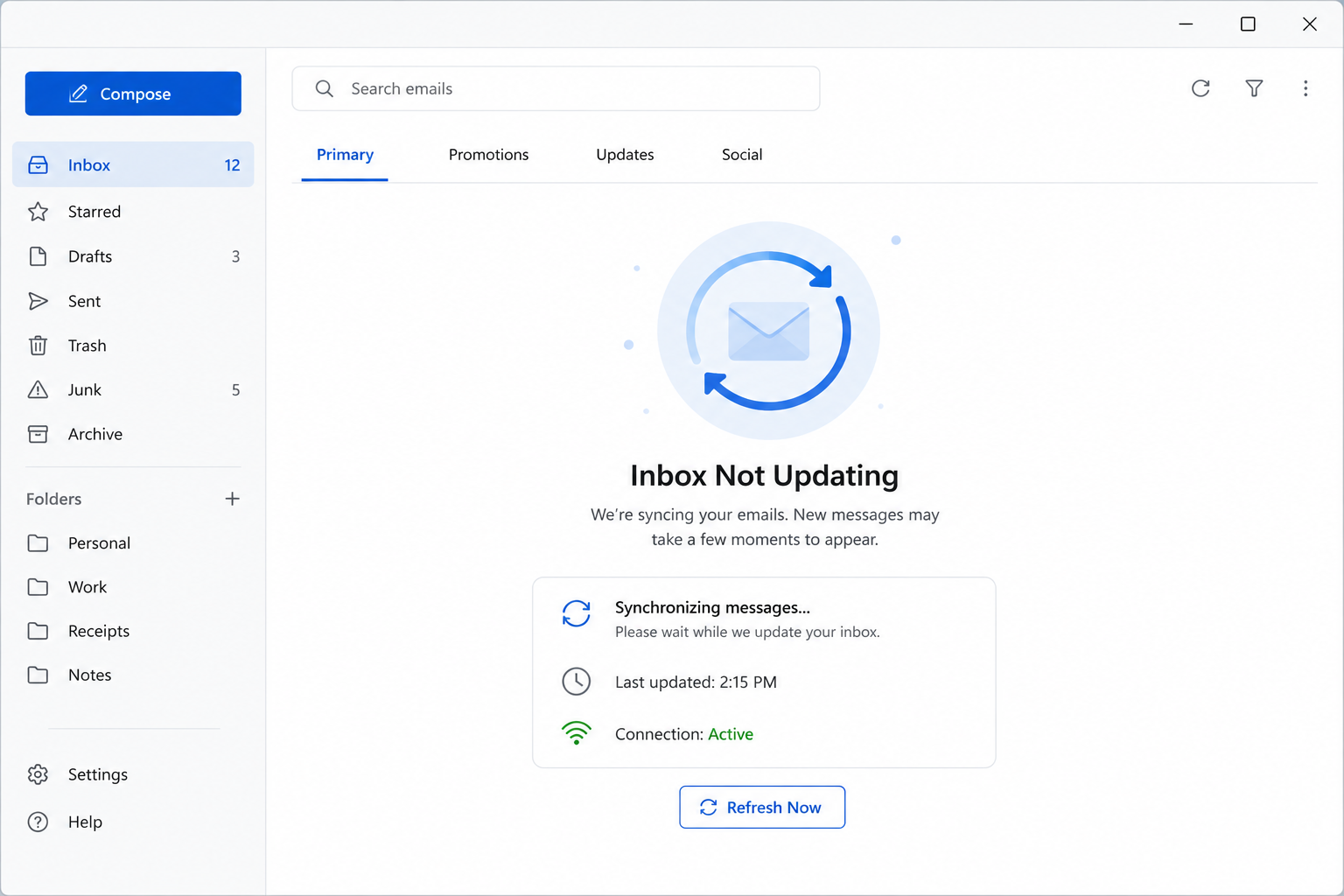
What you see
Inbox shows old messages and new emails do not appear.
What it may mean
Sync may be paused, delayed, or unable to connect to the email server.
Where to check
Sync settings, internet connection, account status
What you see
Email account shows storage full or mailbox quota warning.
What it may mean
New mail may stop arriving when server storage limit is reached.
Where to check
Deleted items, large attachments, storage usage
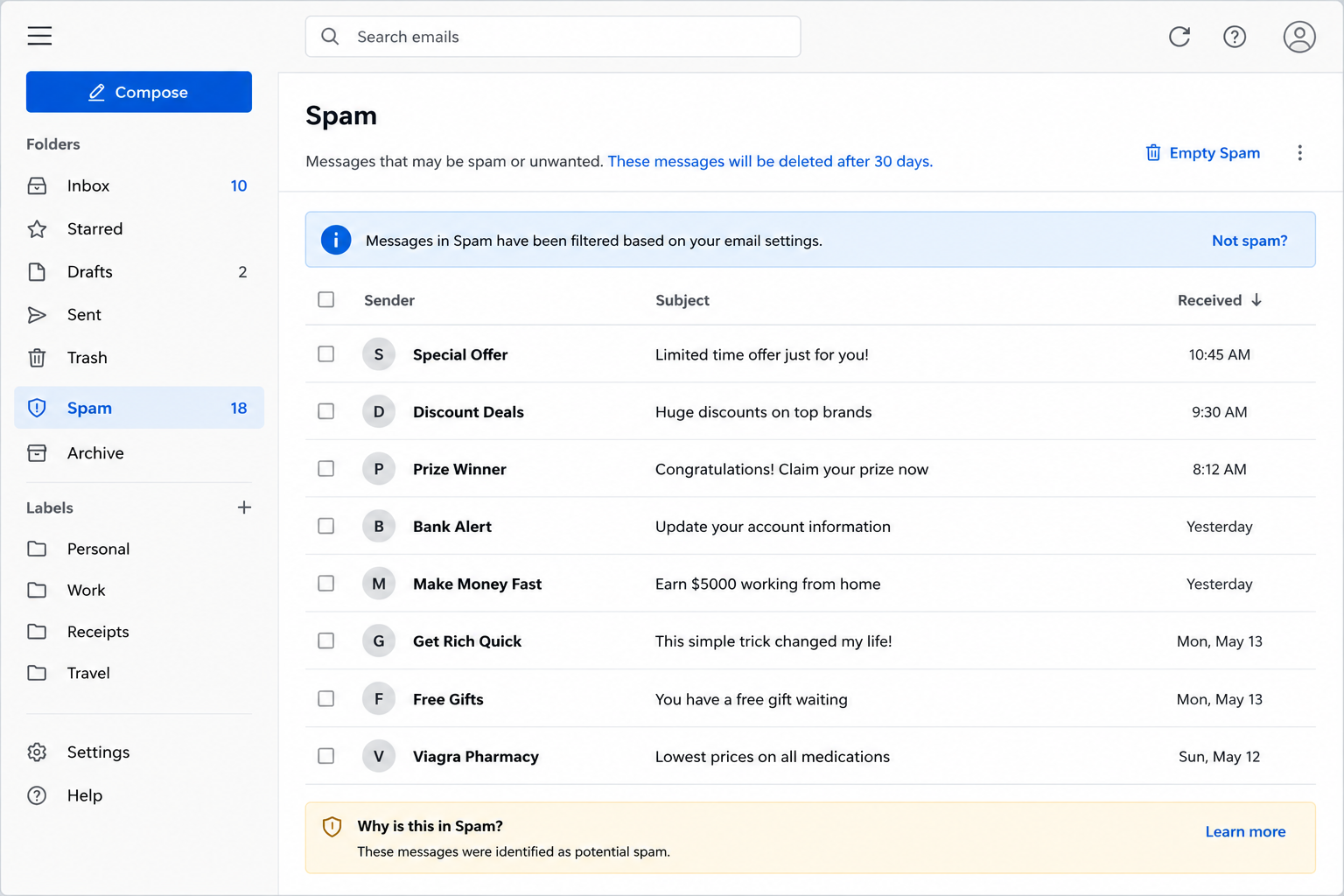
What you see
Expected emails are missing from the inbox.
What it may mean
Messages may be filtered into Spam, Junk, Promotions, or another folder.
Where to check
Spam folder, filters, search box
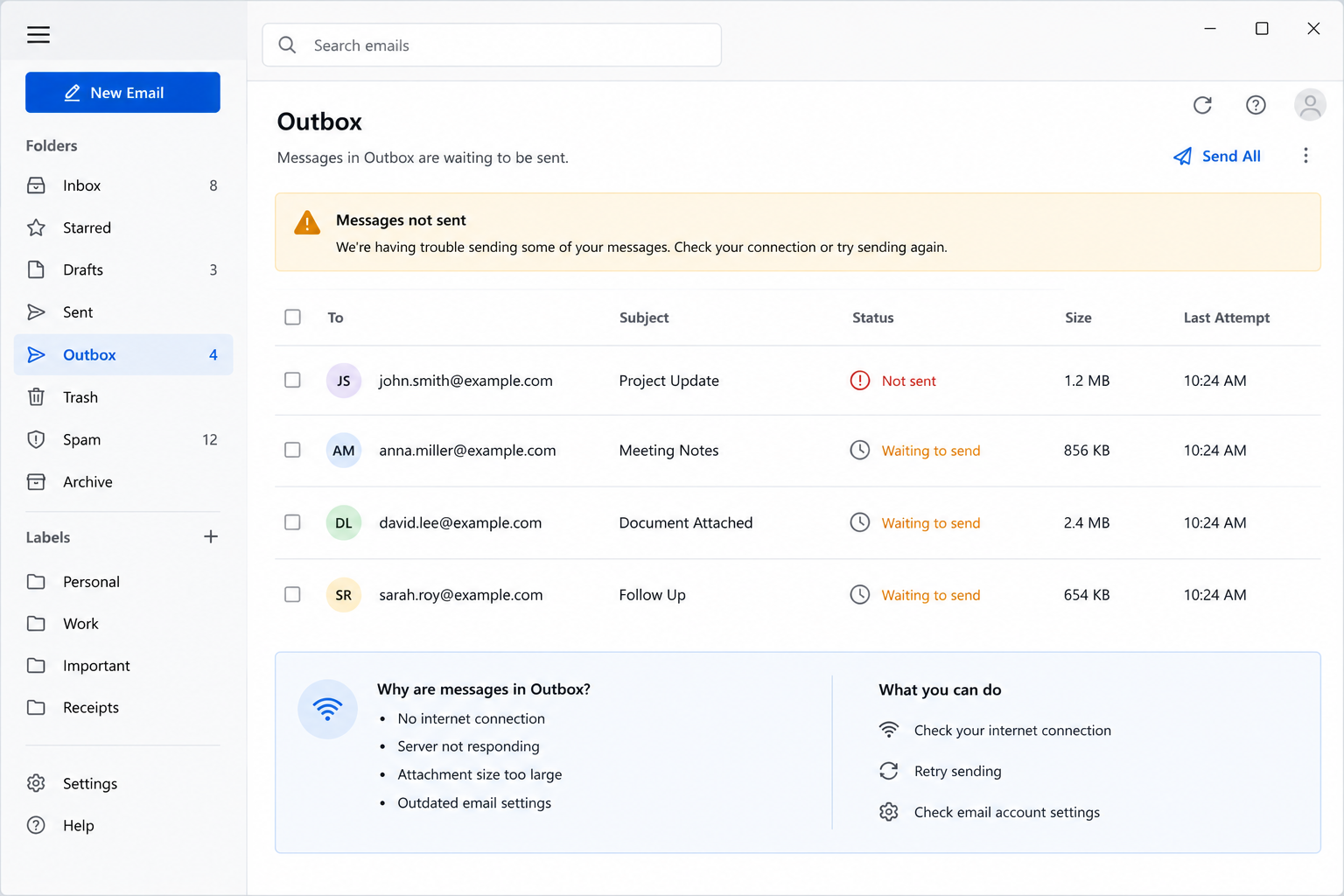
What you see
Email stays in Outbox and does not move to Sent.
What it may mean
The app may not be able to send mail because of connection, attachment size, or server settings.
Where to check
Outbox, internet, attachment size, SMTP settings
What you see
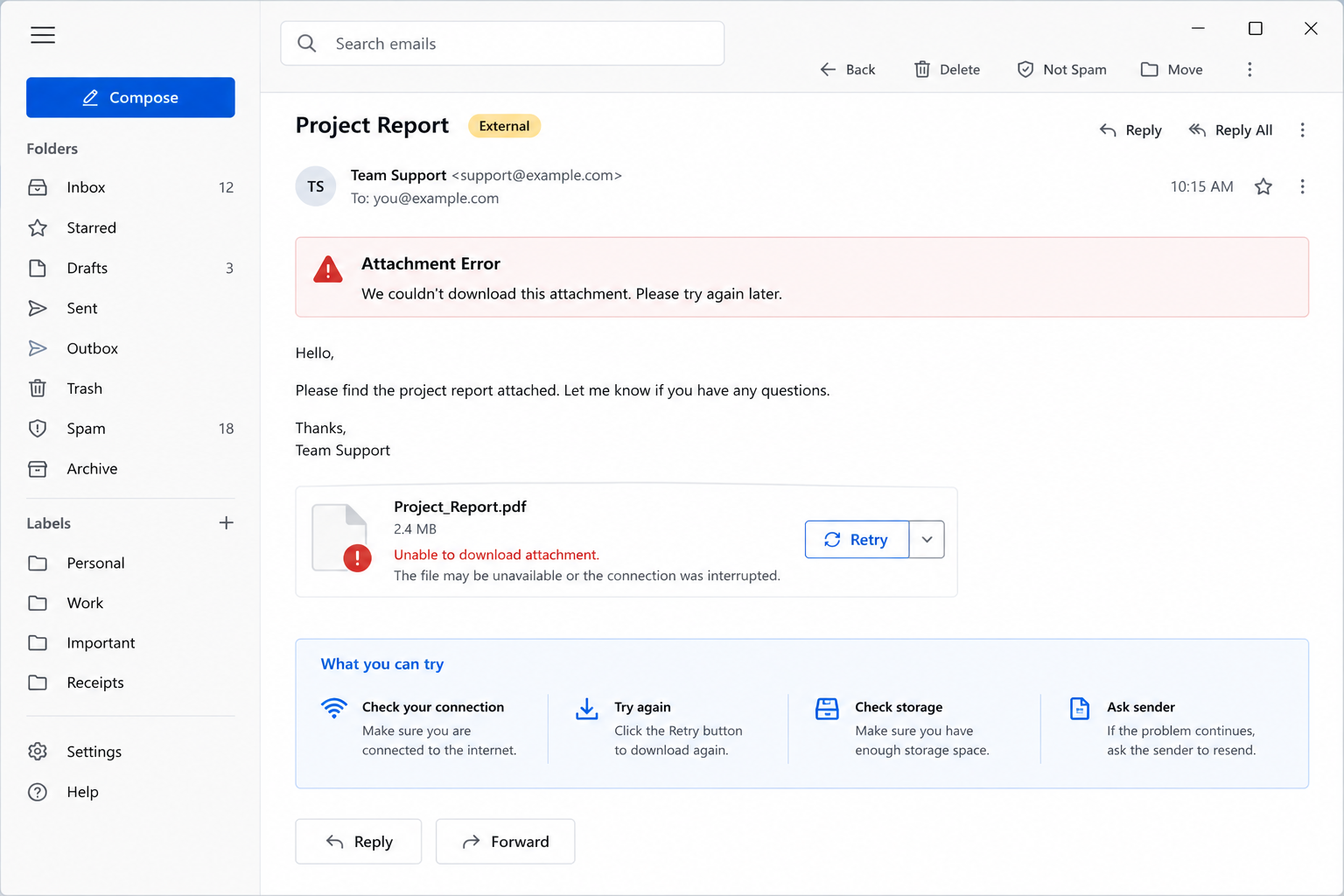
Attachment will not download, open, or upload.
What it may mean
File size, blocked file type, browser/app permission, or network speed may affect attachments.
Where to check
File size, download settings, browser permission
Gmail, Outlook, Apple Mail, Yahoo, and other email apps may use different settings, folder names, sync rules, and security prompts. This page explains common concepts, but product-specific details should be checked from official documentation.
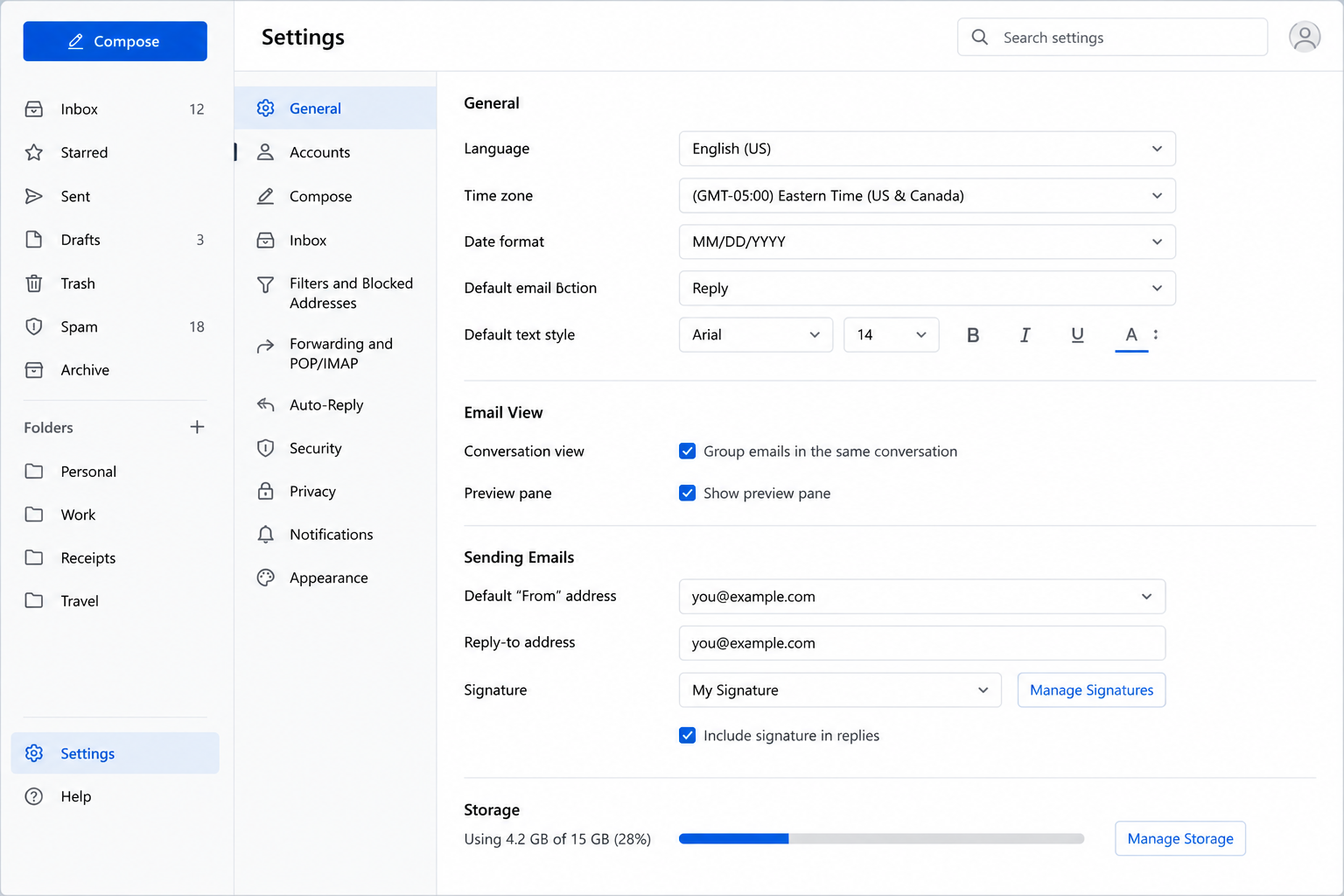
Email apps usually include account, sync, storage, folder, and security areas. These areas help readers understand how messages move and update.
Email address, password, login method, and authentication settings.
Last sync time, refresh frequency, folder updates, and server connection.
Mailbox usage, large attachments, trash folder, and remaining quota.
Email apps do not only display messages stored on the device. In most cases, they communicate with a mail server. The server stores messages, folders, sent items, drafts, spam filtering, and account status. The app refreshes that information through a process called synchronization.
When email does not update, it may not always mean messages are lost. The app may be waiting for server response, account permission, internet access, storage availability, or folder refresh. This is why messages can appear in webmail but not immediately appear inside a phone or desktop mail app.
The Outbox is also important. It usually stores messages that are waiting to send. A message may remain there if the attachment is large, the account needs sign-in again, the outgoing server is not reachable, or the app has not completed upload.
Missing emails may appear in folders such as Spam, Junk, Trash, Archive, Promotions, Social, or another filtered category. Many email providers automatically organize messages, so checking only the Inbox may not show the full mailbox.
A sender writes a message and selects the recipient address.
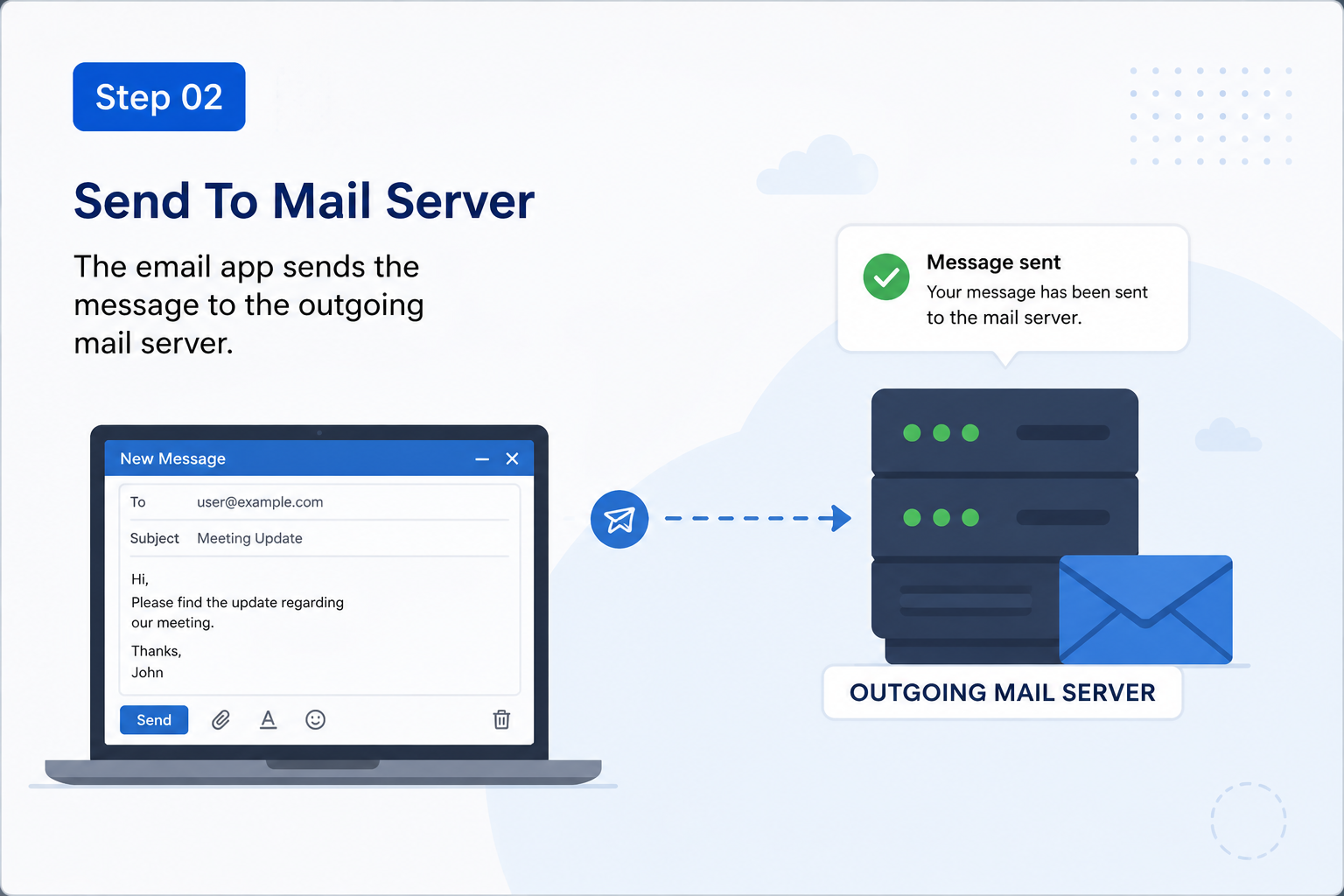
The email app sends the message to the outgoing mail server.
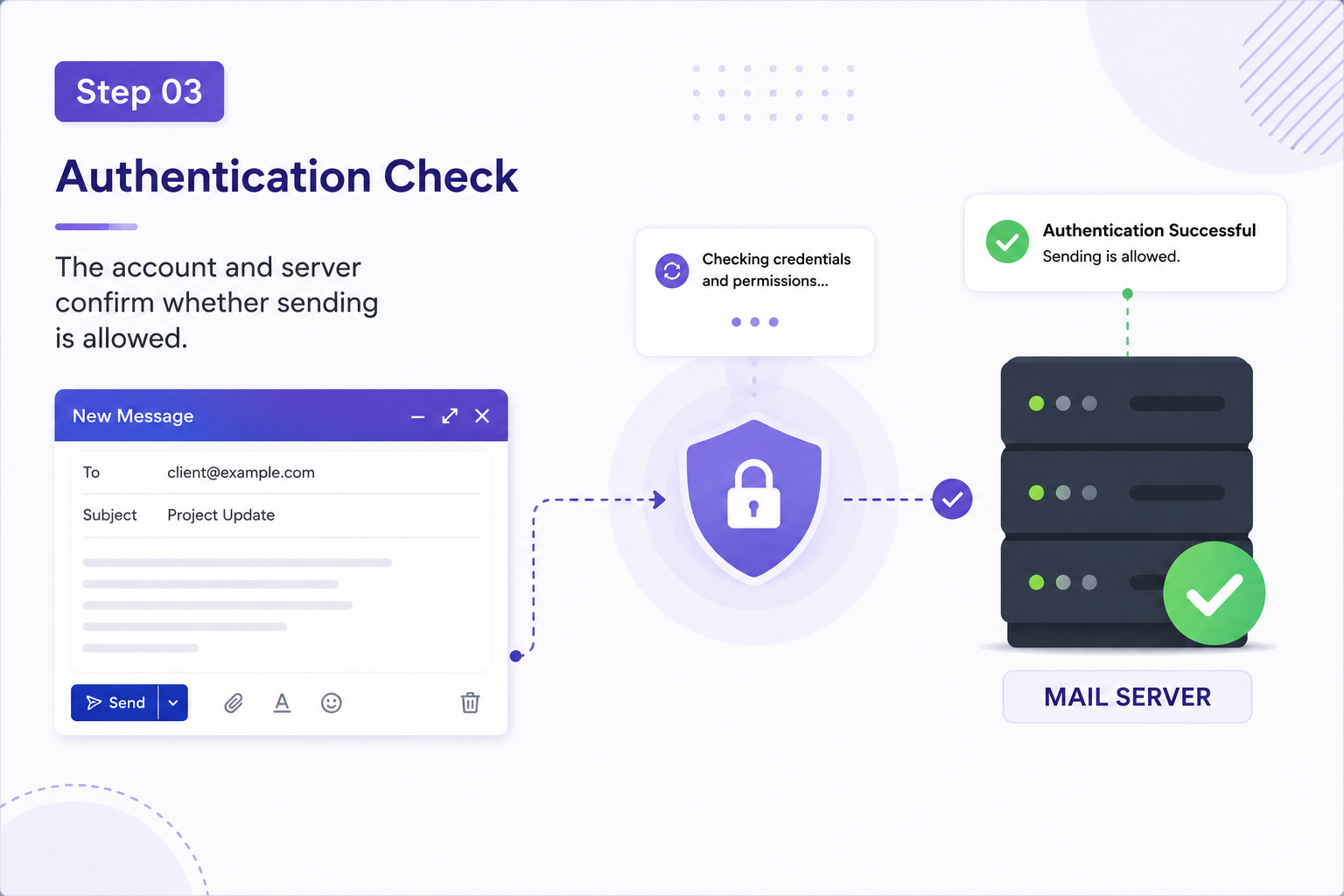
The account and server confirm whether sending is allowed.
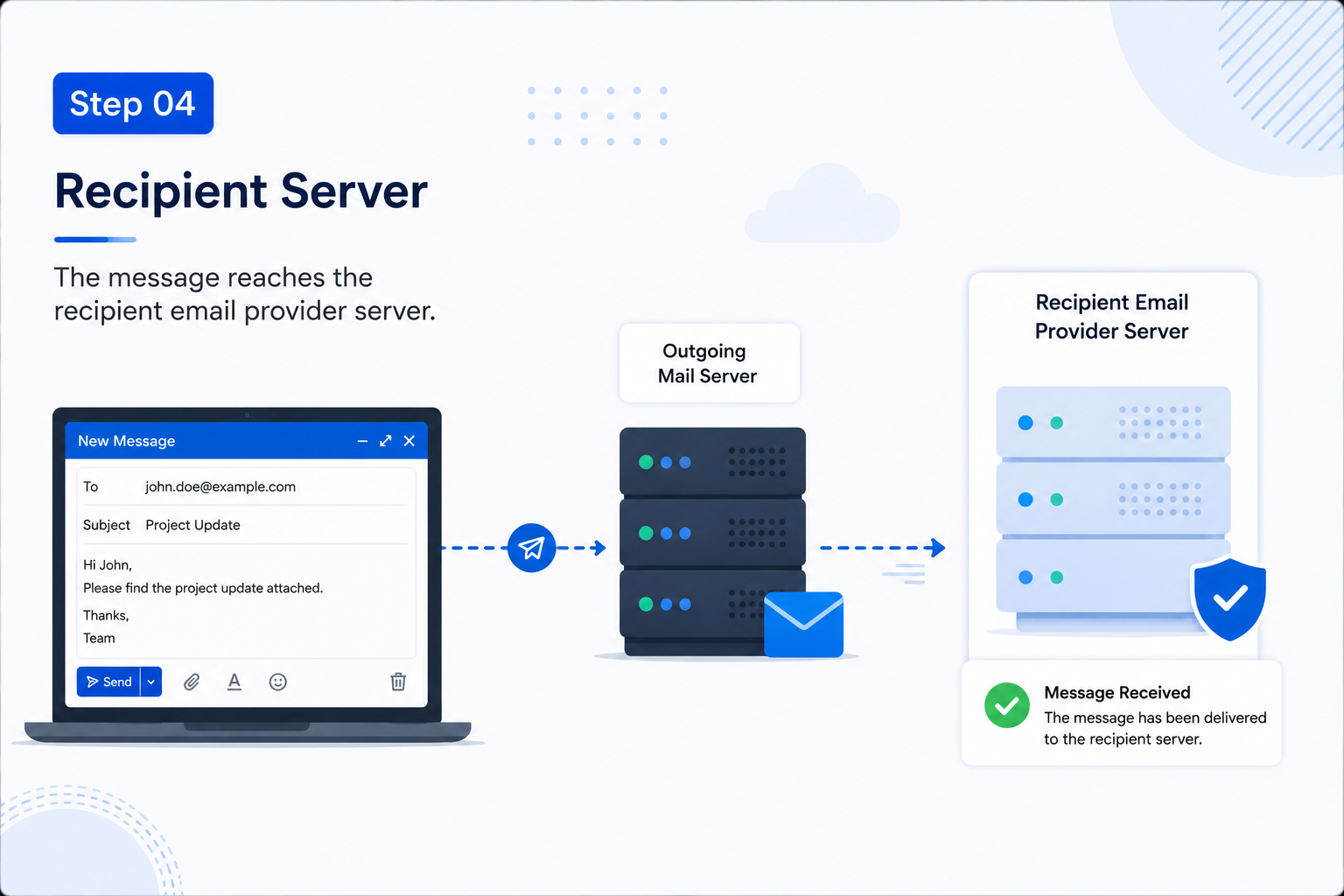
The message reaches the recipient email provider server.
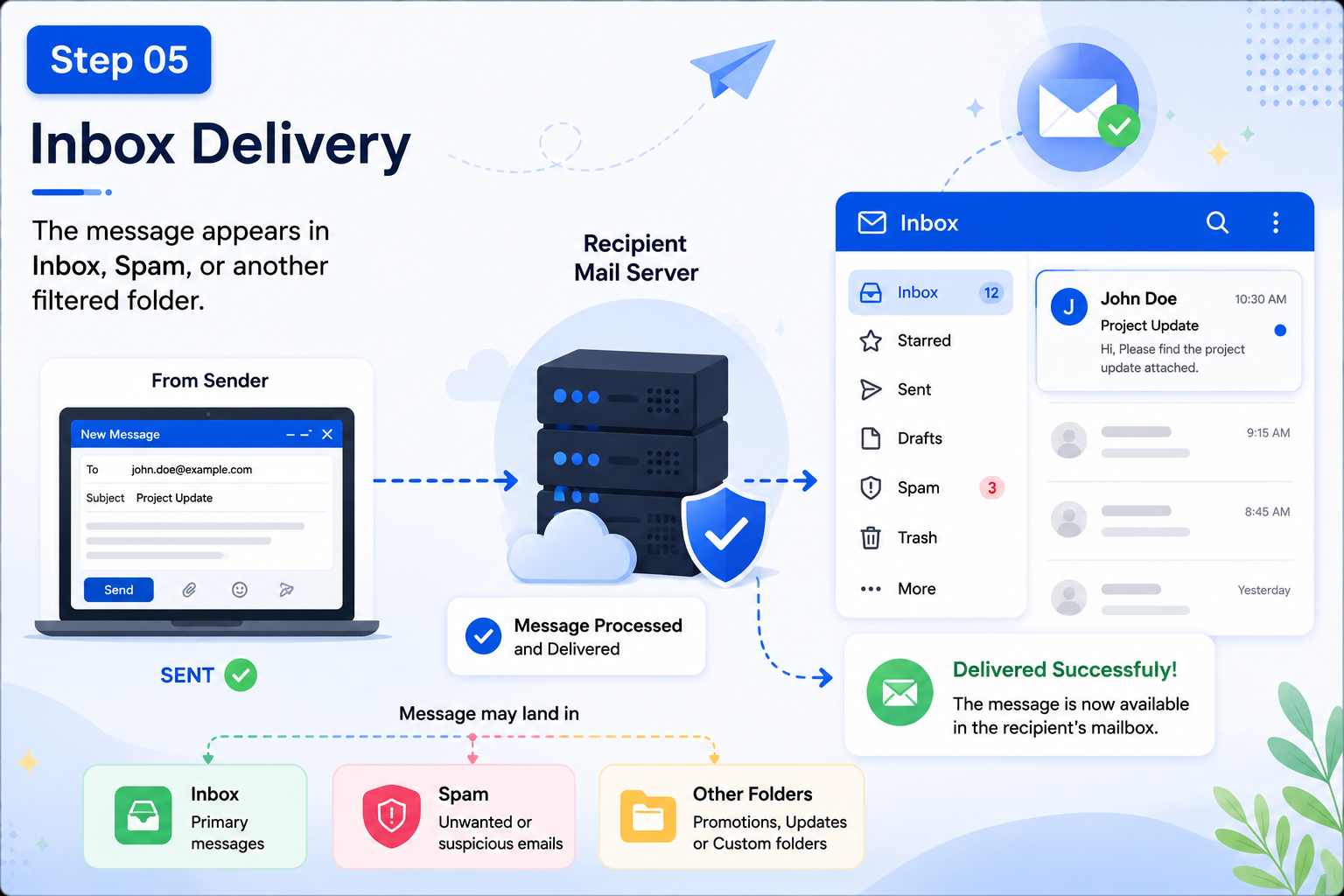
The message appears in Inbox, Spam, or another filtered folder.
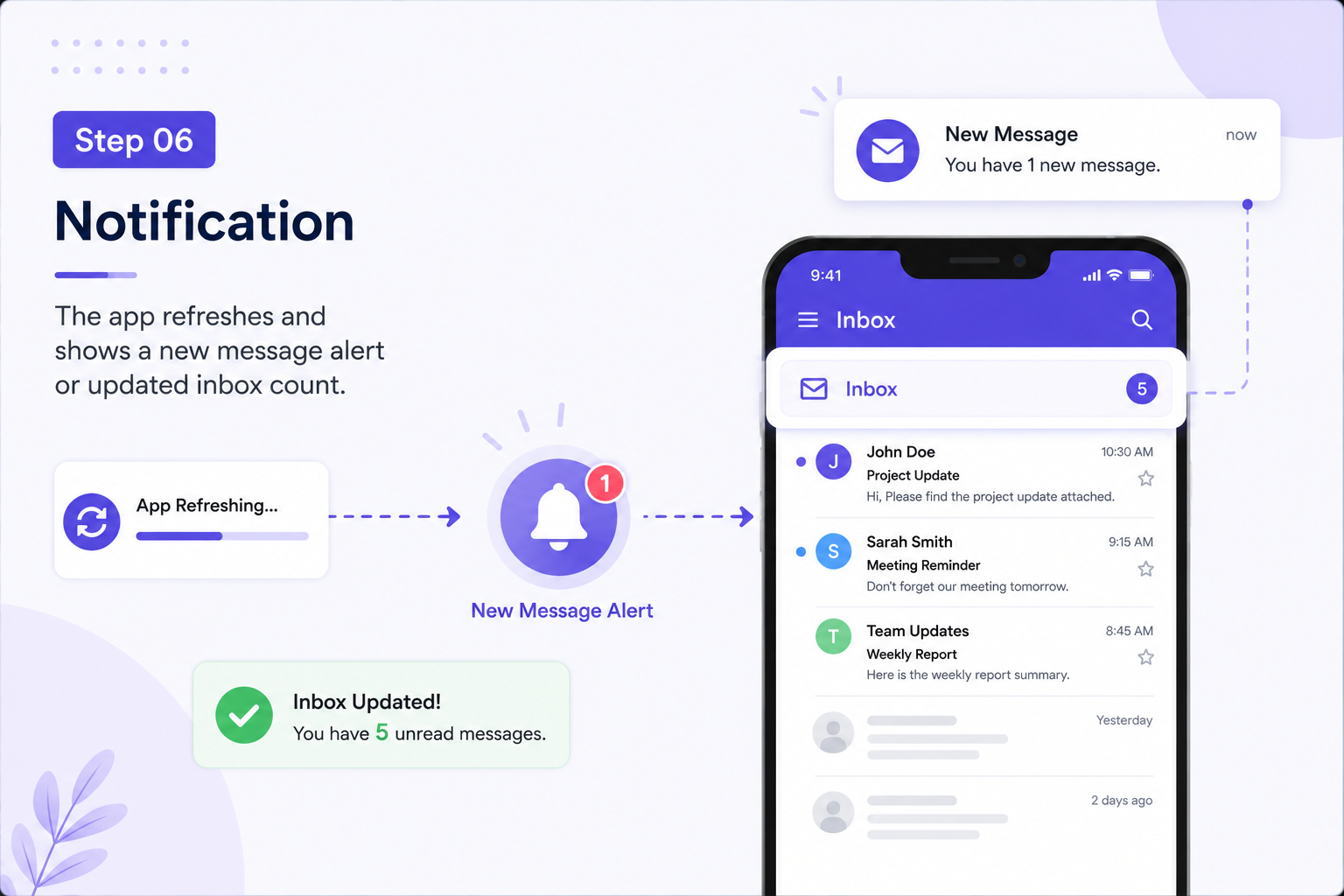
The app refreshes and shows a new message alert or updated inbox count.
Account settings, password page, 2-step verification, recovery email
Sync settings, internet connection, inbox refresh, account status
Spam/Junk, Trash, Archive, filters, search box, categories
Mailbox storage, deleted items, large attachments, sent folder
Outbox folder, attachment size, internet connection, SMTP/outgoing server
File size, blocked file type, browser/app permission, download folder
These terms appear in Gmail, Outlook, Apple Mail, and other email services. Exact labels may differ, but the basic meaning is often similar.
The main folder where incoming messages usually appear.
A temporary folder where messages wait before they are sent.
A folder that stores messages already sent from the account.
A folder where suspicious or filtered messages may be placed.
A storage area for messages removed from the inbox but not deleted.
The process of updating email folders between the app and mail server.
A common mail method that keeps messages stored and synced on the server.
A common outgoing mail method used for sending email messages.
Simple answers about email login, sync, storage, folders, and message delivery.
It may happen when the saved password is outdated, account security changes, or verification is required.
New mail may not appear when sync is paused, internet is unstable, or the account cannot connect to the mail server.
Messages may be filtered, archived, moved to another folder, or hidden by a selected view.
Deleted emails usually move to Trash or Deleted Items before permanent removal.
Some file types or large files may be blocked by security settings, browser rules, or email provider limits.
New emails may stop arriving until storage is cleared by deleting messages or large attachments.
The message may be waiting because of internet connection, attachment size, or outgoing server settings.
IMAP keeps email synced across devices by storing messages on the mail server.
SMTP is commonly used for sending outgoing email messages.
Synchronization means the app updates local folders with the latest server-side mailbox changes.
Read more educational guides about printer learning, router networking, PC performance, and Win update concepts.